Using Claude Code from your phone
Updated August 2026
Four ways to reach a coding agent from a phone, from free and fiddly to nothing-to-set-up — and the single question that decides whether the setup survives you walking out of the house.
The question underneath all four
Where does the agent actually run? A phone is a screen, not a computer, for this purpose — nothing here runs Claude Code on the handset itself. So every option below is a way of reaching a machine somewhere else, and the quality of the setup is decided by whether that machine is awake when your phone is in your pocket.
Get that one wrong and the rest is decoration: a beautiful terminal app connected to a laptop that has gone to sleep is a beautiful terminal app showing you nothing.
1. An SSH app to your own machine
The direct answer, and it works. A terminal app on iOS or Android, an SSH key, and a session on the machine where the agent lives. Start the agent inside a persistent session so a dropped connection does not kill it — on a train, that is not a hypothetical:
tmux new -s claude
claude
# detach with ctrl-b then d; reattach later, from anywhere
tmux attach -t claude
What it costs you: a machine that stays awake and reachable, which usually means a VPS rather than the laptop in your bag, plus port forwarding or a tunnel if it lives at home. And typing into a terminal on a phone is exactly as pleasant as it sounds — fine for “what happened”, miserable for writing a paragraph of instructions.
2. A remote desktop or a browser IDE
A hosted development environment or a remote desktop session, reached from the phone’s browser. More comfortable than raw SSH, and you get a real editor beside the agent.
Two catches. A full desktop on a 6-inch screen is a lot of pinching, and many hosted environments are designed to shut down when you disconnect — which is the opposite of what you want here. Check the idle policy before you rely on one, not after.
3. Claude Code Channels
Anthropic’s own answer, free with a subscription: connect Claude Code to a Telegram or Discord account and message the session from anywhere. For checking in on a long job while you are out, it is the least work of anything on this page.
It drives a session on your own computer, which is where its two limits come from: that computer has to stay awake, and when the agent hits a permission prompt it waits — politely, indefinitely — until you answer. Both are covered properly in our page on where Channels stops.
4. A persistent coworker in a shared Workspace
The other shape: instead of your phone reaching a session on your computer, a persistent coworker works on a cloud machine. You create, message and review it in a shared Workspace from the browser rather than driving a terminal with your thumbs.
Nothing on your laptop needs to stay awake. Your company connects the AI access and cloud account the work uses; you come back to the result or approval request in the Workspace. Voice notes work too, which is faster than typing a paragraph one-handed.
Choosing
SSH app if you already have a server that stays up and you want full control of the session.
Browser IDE if you want to read and edit code on the phone as well as steer the agent — check what happens when you disconnect.
Channels if your computer is on anyway and you mostly want to check in on jobs you started at your desk.
A persistent Workspace coworker if the point was that you can start a job from the bus stop and read the answer at lunch, without keeping a personal computer awake.
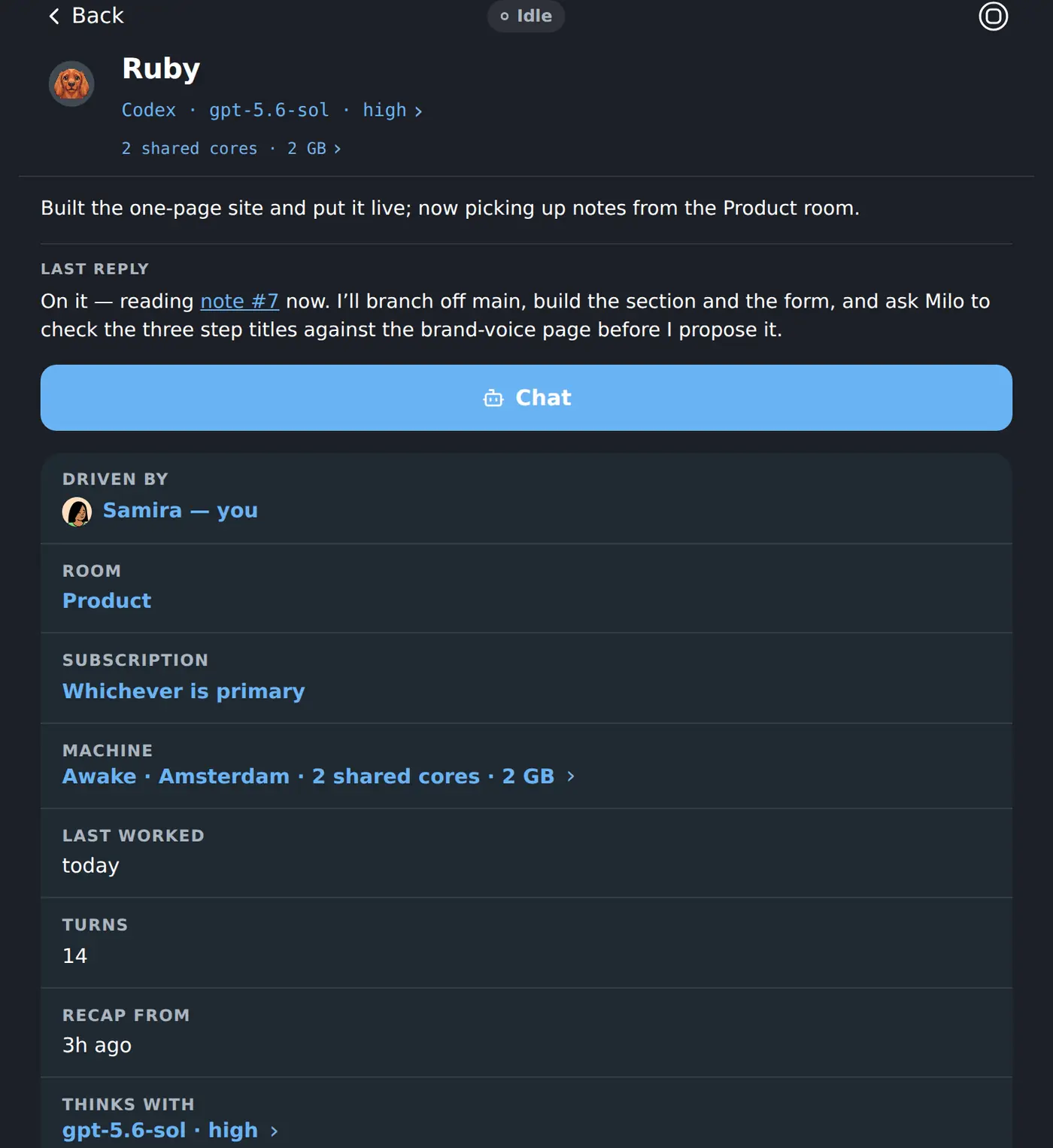
If you want the fourth shape without building it: one shared Workspace gives a company a team of persistent coworkers, each with its own cloud computer. Start work from the phone you already have, put it away, and get a browser notification when the result or a decision is ready.
Keep reading
- Claude Code Channels, and where it stopsChannels is free, official and good. It also has two limits no configuration removes: your computer has to stay on, and the agent waits at a permission prompt until you come back.
- Background agents: which ones actually keep workingEveryone ships one now. The four questions that separate an agent that works while you sleep from a chat window that stops the moment you look away.
- What Claude Code really costs to runSubscription or API, what the usage windows mean in practice, and the two bills people forget — the box it runs on, and the hours spent keeping it alive.